Articles by "Tips and Tricks"

Showing posts with label Tips and Tricks. Show all posts


We all love our old photos as they remind us those happy and fun moments, they just take us to that time and we get in love with those pictures. But as the time passes, these images get torn and they start to lose their quality because of a process called silvering in which the image loses its quality and starts to turn into a silvery shade. The silvering totally damaged your old images and photos along with your memories. So,you  
might be wondering if you can recover those old damaged images into their original form? You might be thinking if you can or not. So,today let me tell you in clear whether you can recover those old memorial damaged images or not. Definitely,yes you can recover and restore your damaged old images easily using Photoshop.


How to recover old damaged images easily using photoshop

Photoshop is a powerful tool that can really help you recover and restore your old memorial images and photos.Its very easy process and I assure you'll love to know this awesome Photoshop trick.You don't need to be worry about how you can do it as today I'm providing you this secret trick to recover and restore old damaged images using Photoshop.Now,no need to go to studio and spend bucks for restoring your old images. So don’t waste your time and scroll a bit to know the trick!


Things required to restore old damaged images using Photoshop


Pretty excited to see the tutorial? Wait a minute, as I'm telling you the stuff which you need before learning the trick to restore your old damaged images and photos back to its original form. So put excitement beside and read the list first!

  • Photoshop CS3+
  • Digital Version of Damaged Photo
  • A human brain

Well these are the only things we need, as of now. And now you can finally head to the tutorial!


How to Recover Damaged Old Images using Photoshop ?


So finally the tutorial is here! Don’t waste your time and read it! And yeah we are keeping it simple and to the point so you don’t get confused!


  • Open any damaged old image and crop it according to your needs.
 
Restore Damaged  images using photoshop
We are using this old damaged image to recover


  • Now we need to boost contrast, for that go to Layer > New Adjustment Layer > Levels and then click OK.
  • Now drag the black input slider to the right and change the value to 29. With this we will darken the grey shades of the image.
  • Now we need to drag the white input slider towards left so it reaches value of 215. With this the shot’s weak highlights would be brightened up.

Recover and Restore Damaged  images using photoshop

  • Now its time to drag the grey slider to the right, adjust it according to yourself. With the help of this we will brighten and detail the mid tones.
  • Now its time to create a smart object, for this we will click on Layer 0 and press CTRL+ J to layer via copy. 
  • Now go to filter > convert for smart filter. Press OK. 
  • Now again go to layer > Noise > Dust and Scratches. Set the radius and threshold as you want.


Recover and Restore old Damaged  images easily using photoshop

  • Now click on the filter layer and press CTRL+ I.
  • Now get a paintbrush with White color as foreground and start painting on the scratches, leave the scratches on face and clothes for now.
  • Now its time to patch the scratch, grab the patch tool and then select the are of scratch on the clothes and then move it a bit above.
  • Now grab clone tool and then clean that place and tidy it up. 
  • Now for the face get the heal tool and start painting on the face.
  • You will see that the scratches have gone and you are having the perfect quality image with you!


Restore Damaged  images using photoshop easily
Final Preview of The old Damaged Image


Final Words

Now,I hope you have successfully learned the trick to recover and restore old damaged images easily using Photoshop. If you are still facing problem with this trick while recovering old damaged images then feel easy to share below your problem and also don't forget to say thanks. Keep Laughing and Have a Nice Day !!


This Article is submitted by Maadhav Saxena, admin at Photoshop Center ( Shop Tuts )


Hello mates,Today I'm here with this simple trick to get unlimited Google plus votes to your blog post. Yes, you can get real Google plus votes to your blog post link. I've come to know this trick yesterday and have tested the trick and yes it works.I get unlimited Google plus votes to my blog post . So,I thought why not to make you aware about this Google plus trick so have decided to share with all of you so that you can also enjoy unlimited Google plus votes to your blog post.

Get unlimited Google Plus Votes For Your Blog Post


Using this trick you can also increase your blog SEO and ranking as your site will get more backlinks and Google will show the posts with have more backlinks.That's why increasing Google plus votes on your blog post not only make your site popular on Google plus but also you can get organic traffics and increase your page rank. So,why not to follow this trick and get more Google plus votes on your blog posts.


How to get more Google plus votes on my blog post?


So,are you curious to learn and get more Google plus votes on your blog post. Then don't worry simply follow this steps and you can increase Google plus votes on blogger post easily.


Step 1 : First step to get unlimited Google plus votes on your blog post is to put social sharing widget like share this or add this.Simply search on Google for above widgets and you can get code of your social sharing widget for free. Afterward, install that on your blogger so that you can see proper counting of shares made on each posts through social medias like Facebook, Google plus,twitter, tumblr, stumble-upon and so on.

Trick To Get unlimited Google Plus Votes For Your Blog Post


Step 2 : After you have properly installed social sharing widget then you need to join some big Google plus communities where there are many users. Its the key to get more means unlimited Google plus votes for your blog post. More the number of users on Google plus communities more chance to get Google plus shares.So,try to join some really big Google plus communities. Also,try to find the google plus communities related to your blog niche. Here are some really big google plus communities from where you can get unlimited google plus votes on your blog post.

Google Plus Votes For Free For My Blog


Some Big Google Plus Communities I recommend you all to join to get unlimited Google plus votes to your blog post

 Famous Quotes
 True Love 
 Science on G+
 Gaming
 Hacker News 
Jokes of the Day

Try to join about 15-30 such big Google plus communities 


Step 3: Here comes the tricky part to get unlimited Google plus votes to your blog post. Now after you've joined above communities go and make the post. Click on Upload image and Choose some image related to communities . ( Note : You can get related images on Google. Just go and Search on Google like Famous Quotes and Click on Image and Save that image and now upload the image to Google Plus. ) After you've done that put your link on the description and click on share . That's it.  You can see demo on below image on how to do that.

How To Get Unlimited Google Plus Votes On My Blog Posts?
Example on How to make post to get unlimited Google Plus Votes on Blog Posts


You can check the sharing of this post to see proof of the trick 

How this Google plus trick works?

You might be surprise on how this will increase your Google plus votes on your blog post right. No need to be surprised any more now as I'm going to tell you the reason behind this. Google Plus Shares on your picture gives Google plus shares on your link too.That means when your picture gets +1 vote then your link also gets +1 vote as link is associated on your picture. That's the main reason to get unlimited Google Plus Votes To your Blog Post.


Final Words

Hope you enjoyed the article on how to get more Google Plus Votes on your blog post. Using this trick you can now get good back-links for your website. This will consequently help you grow your blogger. So, If you've got any kind of problem related to this trick to get unlimited Google Plus Votes To your Blog post then simple comment below. Thanks and Have a Good Day !!


Source of the Trick : Iftiseo Team


I'm back with this cool trick to change the background color and text color of command prompt ( CMD ) . Many of you might think we can't do any tweaks and tricks with command prompt (CMD ) but you're wrong. We can sometime play with command prompt(cmd). We can change the background color of cmd , We can change the text color and font size too. So,today I'm showing you all how to change the background color and text color of command prompt (CMD ). Using this trick you can easily get good impression among your friends.So,let's not waste time and learn something new and fun tricks on cmd to change background color and text color.When anyone thinks about the command line an image comes to his/her mind which is like.


Trick To Change CMD Background and text color


What is Command Prompt (CMD ) ?


All of you might know about Command Prompt commonly known as CMD.  CMD stands for command i.e it is a command line interpreter on Windows OS provided by Microsoft company. In Windows 9x and DOS it is the analog of COMMAND.COM ( Commonly Called as MS-DOS Prompt ) whereas in Unix system it is analog of UNIX Shells.


Change the text color and Background color in cmd


First you need to open cmd so as to proceed next step to change the background color and text color. To open command prompt simply follow this steps.


Step 1: Click on the Start Menu.

Step 2: Click on the Run option.

Or you can press Windows Key + R to get Run command directly

Step 3: Type the appropriate command  (cmd )

Step 4: Click on the OK button :)

That's it...


Change the Text Color of Command Prompt

 Now,Type below command in your command prompt !!!

color 0a to change the text color to green.
color 0b to change the text color to blue.
color 0c to change the text color to red.
color 0d to change the text color to pink.
color 0e to change the text color to Yellow.
color 0f to change the text color to White.

How To Change Background and text color in Command Prompt?


Change the Background color of Command Prompt

  Now,Type below command in your command prompt !!!
 
color 0a to change the background color to Black.
color 1a to change the background color to Blue.
color 2a to change the background color to Green.
color 3a to change the background color to Aqua.
color 4a to change the background color to Red.
color 5a to change the background color to Purple.
color 6a to change the background color to Yellow.
color 7a to change the background color to White.
color 8a to change the background color to Grey.
color 9a to change the background color to Light Blue.


Change text and background color of command prompt easily


Note : In this code we are using a which refers to Green Text so while changing background if you wished to change the color of text too change A to other Alphabets like b or c or d or e or f. The text color code are same as mentioned in above process to change text color i.e b for Blue Text & c for Red Text.

Here's an example on how to make red background with blue text.

For red background,color code number is 4 and for blue text,color code alphabet is b so code becomes color 4b


How to change text and background color of command prompt easily


Hope you enjoyed the tutorial on How to change the background and text color in command prompt. Now you can prank your friends easily, can play with cmd and change the text and background color easily.If you got any problem then simply comment below !!!


Hello mates,today I'm going to show you simple way to download torrent files using internet download manager. Yes,you can download torrent files easily with the help of IDM. Torrent files are in the extension of .torrent and the trend to upload in torrent is very popular nowadays as the files remain forever in torrent sites. You can also upload large files in torrent sites and one can download it with the help of U torrent or Bit torrent but sometimes you may find them boring at their speed. In some countries the download speed for torrent files are very low which is not good. So why don't we hack the torrent and get its maximum speed. Of course,we can use Internet Download manager to hack and download the torrent files easily. In this post,I'm using the help of Zbigz to download Torrent files using IDM. Now,lets see how to download torrent files easily using IDM. Before we start,I'm showing you what is zbigz and how to download torrent files using zbigz or you can say how to use IDM to download Torrent files with the help of Zbigz or how to use Zbigz to download torrent files ?

How to Download Torrent Files Using IDM


What is Zbigz.com?

Zbigz is a gateway between huge data storage (BitTorrent network) and you. Zbigz Helps you enjoy easy download from torrent. Using Zgibz you can be anonymous while downloading from torrent. Zbigz provides free and premium services. You can even download torrent files easily using IDM from zbigz without registration. Only you need is the .torrent file or download link of torrent file to start downloading torrent files with the help of IDM from Zbigz.


Why to use IDM to Download Torrent Files from Zbigz?

Internet Download Manager ( IDM ) is a download manager used worldwide to download files. It uses 16 connections to download the files. Also using IDM you can easily pause and resume the downloading files. IDM features with many premium services which is far better than Bit Torrent and UTorrent. It is compatible with all browsers. You'll feel easier and faster to browse download files from IDM. So,no need to tell more about IDM as you all know its the best download manager in the world. So, Just Download IDM to download Torrent files easily and fast.


Download IDM v6.19 Build 9 Full Version From Here


How To Transfer Torrent Files Using IDM?


So,now lets learn how to download torrent files easily using Internet DownloadManager ( IDM). Follow the following steps and enjoy torrent download using Zgibz and IDM.


Step 1:   First copy the torrent files link or download the torrent file with .torrent extension which you wish to download from the internet directly without any torrent client like utorrent.


Step 2:  Now open zbigz.com and you will land on their homepage.


Step 3:  Then Click on upload Torrent and browse your torrent to transfer or paste the link directly and click on Go.


Download Torrent Files Using Zbigz


Step 4: Then it will ask you for Free or Premium service, choose Free to proceed further.


Step 5: It will take some time to cache your file. Once the caching is done, click on transfer button to download your file as shown below.


Download Torrent Files Easily Using Internet Download Manager


Step 6: You should have internet download manager installed on your computer so that download start inside IDM. If you don't have IDM don't worry it will download directly.


Note: If you decide on to use Free transfer then you wont be able to transfer file of more then 1 GB from Zbigz. So, you might Need Premium Account for Zbigz. Don't Worry I'll provide the Premium account for Zbigz very soon so that you can enjoy premium full speed download. 


That's all !!! Hope you loved the article on How to Download Torrent Files Using IDM. If you've got any problem then Comment Here and don't forget to share this trick among your friends and relatives. Stay Tuned for more tricks and Hack the Torrent !!!


Nowadays,the trend of Rooting android phone is increasing day by day.Many android phone users try to root their android phones but they still don't know what is rooting and how to root an android phone in a single click.No worries as today,I'm going to show you complete guidelines on android rooting,its advantages and disadvantages and simple trick to root any android phones in a single click. So,lets learn about rooting android phones.

Root my android phone in a click

What is Rooting?


Rooting is a process which allows users to get root access to the Android operating system code (the equivalent term for Apple devices id jail-breaking) . By rooting your device, you can delete or modify the system files which in the default mode (unroot) i.e  the files which can’t be accessed can be accessed by rooting your android devices.


Advantages and Disadvantages of Rooting Your Android Phones


Now you've known what rooting is so you wanna know about the advantages & disadvantages of rooting the android phones. Here,I'm going to discuss some advantages and disadvantages of rooting your android phones.

Advantages and Disadvantages of Rooting My Android Phones


Some Advantages of Rooting Android Phones

Rooting your android phones will definitely let users to have complete access to all of the following benefits..So,check here some best and popular advantages of rooting.


1] Access more apps

There are many apps available on internet for android devices but they run only on Rooted android devices.Unfortunately, many of these apps are just amazing and extremely cool to use. For example, an app called Set-CPU will automatically control the CPU usage of your android device and also it increase your battery life. But Set-CPU is only available for rooted android devices only not for normal android devices. So,rooted android devices will get access to more apps which is great advantage.


2] Preserve battery life

As I told you earlier rooted android devices and phones will get access to more cool apps and there are plenty of apps for rooted devices only that allow you to maximize the battery life of your device. You don't even have to sacrifice your android devices performance so as to preserve your android phone battery life.


3] Faster performance

Most of the android devices are pretty fast but rooting your android phones can make them work even more faster and quicker. There are some custom ROMs specially designed for speed which means faster transitions between apps, faster internet speed and all sorts of other performance related benefits.


4] WiFi and Bluetooth tethering

Using rooted android phones you can easily connect to WiFi and Bluetooth from your device to laptop or computer . You can create a WiFi hotspot from your device and share it to the world easily. You can easily transfer files and folders within a click to computer from your device . All this amazing and awesome features come on rooted android devices. Yes,you may get WiFi hotspot facility on latest unrooted android devices but still many are missing this feature. So, rooting can only solve that problem.


5] Install custom ROMs

This is the most powerful feature that you can get by rooting your android devices. Custom ROMs allows you to change the entire look and increase the performance of your android phones. Using Custom ROMs users can also easily load the newest available android versions on their devices


6] Full control over your system

The term ‘rooting’ comes from the fact that users have full control over the ‘root’ of their system. Instead of being restricted from editing essential system files and other data, Android users now have full control over their system. This means you can edit core apps, install new themes, execute commands, and perform all sorts of other special tasks.


7] Install apps on your SD card

Your Android device only has a limited amount of space. If you want to maximize the amount of space on your device, then you might have tried to install new apps onto your SD card. Unfortunately, most Android builds prevent you from doing this. After rooting your Android device, you’ll find this problem to be a thing of the past. You can now install apps on your SD card, which means more space for your important files.


Disadvantages of Rooting Android Phones


Rooting not only have advantages but also some disadvantages.I'm going to describe the disadvantages below.


1] Voids Your Android Phones Warranty

This is the worst part of rooting your android phone if you've android phone which is in warrant. Rooting of your android phone cause the warrant provided by the phone company completely void. That means your warrant won't work any more. Yes,in some case you can unroot your device again but in many cases there is no go back way. So, I strongly suggest you all not to root your android phones if you've your android phone under warrant.


2] Vulnerable to Malware and Virus Attacks

This is another problem that android users might felt when they rooted their android devices, Malware Attack. Yes,there are many suspicious and malicious apps available over internet. When one installed these kind of apps then there is great chance to loss data and your private information of android phones if your phone is rooted and you might be in risk. So,be careful if you're planning to root your phone. Although malicious app on the rooted phone or tablet has not really been a problem yet, but it can be in the future.


3] Your Android Phone Turn Into A Brick

Bricking of device means screwing up of phone software so badly that phone can no longer able to perform its function and phone becomes a dead phone which is also known as bricked phone. But most bricked phones can be unbricked.


4] Over-cloaking

In some cases, Rooting can cause your android devices over heat even when you do small task there. Sometimes is some extreme cases it can cause explode of your android phones.


 How To Root Your Android Phones In A Single Click?


Well, I've told you about the advantages and disadvantages of rooting your android phones. So, it all depends on you whether to root your device or not. If you don't want to root then its ok but if you want to root your device then be careful after rooting your android device. So,let's see how to root your android phone in a click.


How To Root My Android Device Easily In A Single Click Using PC


Step 1 :  Go to this site and download Unlock Root Pro. After that install it in your computer.


Step 2 : Install the required USB Driver for your android device on your computer. You can easily get driver just Google requesting for Your Phone name USB Driver.


Step 3: On your Android device, enable the USB debugging mode. You can Google on where to find USB Debugging mode.

Enable USB Debugging While Rooting

Step 4: Connect your Android phone or tablet to your PC using the USB cable. Run the Unlock Root Pro tool and it would connect your device to server and detect the model information automatically.


Step 5: Choose your device model from the list displayed and then click ‘root’ to start the process. Wait until the process complete. When the rooting is done, you will get a message saying “Your Device Has Been Rooted Successfully”. After-Ward, Restart Your android phone to see changes.


Conclusion :


I hope you enjoyed the tutorial on how to root any android phones in a single click. Rooting your android phones can bring all the facilities to your phone but be careful while using rooted phones. So, If you have any doubt or problem regarding rooting then feel free to express it on comment section. That's All, Have a good day.


Driver toolkit is very important tool for downloading and updating latest drivers for PC. So,every one are searching for its premium version .But while trying to activate it everyone is getting decompress errors. Many of the users are facing problem with decompress error while trying to activate driver toolkit v8.3.So,today I'm going to show you all how to fix decompress error in driver toolkit 8.3. This trick works 100 % and is tested . So,lets start on how to do this !!!!


Solve Driver Toolkit 8.3 Decompress Data Error


Firstly Download Driver toolkit 8.3 with crack and serial key from here

How to fix decompress data error on driver toolkit 8.3?


1] When you get the error, exit driver toolkit. 

2] Press windows+r (run) and run 'regedit'. 

3] Ctrl+F (search) and search for 'drivertoolkit'.  Or Go to HKEY_CURRENT_USER > Software > Driver toolkit...

4] Delete the entry (rightmouse button and delete) and restart Driver Toolkit. 

Should work now.


Note :You'll have to delete the entry's after every restart of your system. If Driver Toolkit doesn't start, try killing the program completly. Ctrl+Shift+Esc (Task Manager) and find DriverToolkit. Right mouse button, close program or something (not using an english system)


That's all !!! Hope you enjoyed the post.... 


Incoming Tags :

How to fix driver toolkit 8.3 Decompress error?
Decompress error for driver toolkit 8.3 problem solved
How to get driver toolkit 8.3 full version for free with decompress problem fixed?
Driver toolkit 8.3 Decompress error fixed and solved
Driver toolkit working keys to fix decompress error


Hello guys,today I'm back with some amazing and cool tricks to speed up the internet connection. Everyone hates slow internet connection.Everyone wishes to have high speed internet connection but can't afford for that.So, many of the users are forced to run slow internet connection.But now the slow internet connection problem is solved guys. I've done some research and came here with some tricks to boost up slow internet connection . Yes,you have heard right working tricks to boost up slow internet connections . I've used this 4 ways to increase the speed of my internet connection.So,lets see 4 ways to speed up slow internet connection.

How to Boost Up my internet Speed

How to Speed up slow internet connection?


1]  Optimize your Browser 


First of all this simple tip to boost up internet connection. If you're using some old version of browsers or internet explorer then go and optimize that browser to latest version of optimized browser. I would suggest to use Google Chrome. Google chrome uses less memory and bandwidth than other browsers. Yeah,you can also try for Maxthon browser or opera browser but my strong suggestion is only Google Chrome.


How to Speed Up my internet Speed


2] Speed up Internet with Top Public DNS Servers


DNS server is also playing an important role in the increasing the speed of your internet connection.Using this trick you can boost up your internet speed on windows easily. Now let's see how to boost the internet connection's speed by using public DNS server addresses.


List of top 10 high speed internet DNS server addresses 

Google:
Preferred DNS server - 8.8.8.8 
Alternate DNS server - 8.8.4.4 

Comodo DNS: 
Preferred DNS server - 8.26.56.26 
Alternate DNS server - 8.20.247.20 

Norton DNS: 
Preferred DNS server - 198.153.192.1 
Alternate DNS server - 198.153.194.1 

OpenDNS: 
Preferred DNS server - 208.67.222.222 
Alternate DNS server - 208.67.220.220

Level3: 
Preferred DNS server - 209.244.0.3
Alternate DNS server - 209.244.0.4 

ScrubIT3: 
Preferred DNS server - 67.138.54.120 
Alternate DNS server - 207.225.209.77 

OpenNIC4: 
Preferred DNS server - 69.164.208.50 
Alternate DNS server - 216.87.84.211 

Public-Root5: 
Preferred DNS server - 199.5.157.131 
Alternate DNS server - 208.71.35.137 

DNS Advantage: 
Preferred DNS server - 156.154.70.1 
Alternate DNS server - 156.154.71.1
SmartViper: 
Preferred DNS server - 208.76.50.50 
Alternate DNS server - 208.76.51.51


Steps to perform to speed up internet connection using Public DNS server

  • Go to Control Panel
  • Open Network and Sharing Center
  • Then Open Local Area Connection and select IPV4 and properties
How to Speed Up my internet Speed using DNS Server


  • Now Click on Use the following DNS Server addresses and change it with any of above given top public DNS Address and click on OK.
     
How to Boost Up my internet Speed using DNS Server

You've now boost up your internet connection using Public high speed DNS Server.


3]  Using Command Prompt (  CMD ) to speed up slow internet connection


Yes,you can also boost up internet speed connection using cmd trick. This trick is simple and I would like to say this trick won't increase speed internet connection dramatically but definitely it will boost the existing connection to better performance. So,lets see how to do this.

Steps to perform to boost internet connection using command prompt

  • Click on Start and Select all programs
  • Click on accessories and select command prompt 
  • Now,run cmd as administrator 
  • Type following lines in command prompt and hit enter

netsh int tcp show global
netsh int tcp set global chimney=enabled
netsh int tcp set global autotuninglevel=normal
netsch int tcp set global congestionprovider=ctcp 

How to Boost Up my internet Speed using cmd

That's all setting to boost up internet connection using command prompt.


4]  Speed Internet Connection Using Microsoft by 20%


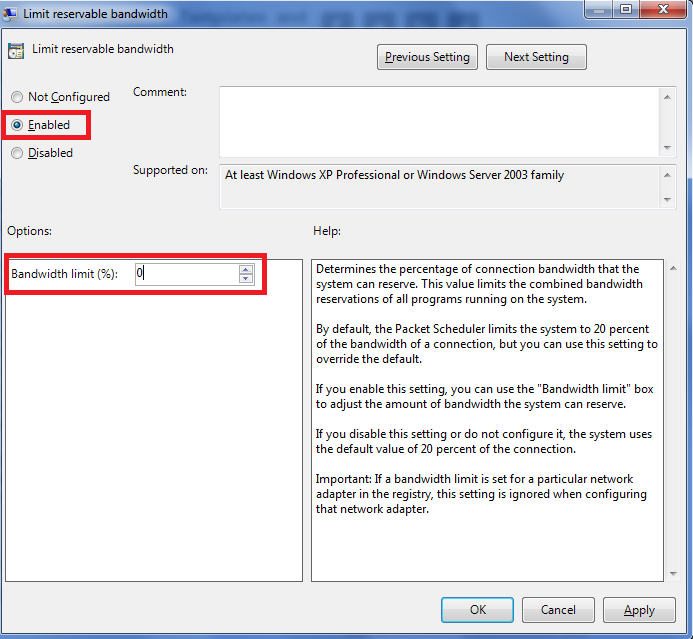
Most of the Windows computer users don't know that the Microsoft has reserved 20% of our internet bandwidth for some of their own purposes like Windows update. By doing some changes on Local group policy of Windows computers, we can use the internet connection's maximum bandwidth. 

Steps to perform to boost internet connection using microsoft by 20%

  • Click on Start Menu and type run and hit enter. ( Use Windows key + R )
  • Type gpedit.msc on run command and hit enter.
  • Now go to Local Group Policy --> Computer Configuration --> Administrative Templates --> Network. 
  • Now double click on QoS Packet Scheduler 
  • Then double click on Limit reservable bandwidth
How to Boost Up my internet Speed using microsoft

  • Now a window will appear. In that window, select Enabled and then make bandwidth limit to 0 (zero). Finally click on OK.
How to speed Up my internet Speed using microsoft


That's all about how to increase speed up a slow internet connection . Hope you enjoyed a lot and if you've got any new tricks then feel free to share here.Thanks for reading this article and don't forget to share your response on 4 ways to speed up slow internet connection. Have a Good bay and enjoy new internet speed.


Today,I'm going to show you simple trick to watch you-tube 18+ videos without signing in. Sometime you-tube asked for sign in for age verification while watching you-tube videos so its a little bit disgusting but don't worry now you can easily bypass sign in to watch 18+ videos on You tube.So,lets start with this trick to hack you-tube...

Watch 18+ youtube videos without signing in

How to watch Youtube 18+ videos without signing in?


1. First of all get the url of the video you want to watch on youtube like this..
 http://www.youtube.com/watch?v=4Xkh6j7RMqk

2. Then copy the Video Id. For above link video Id is 4Xkh6j7RMqk


3. Now paste the Video Id in the link given below.

http://www.youtube.com/v/VideoId?fs=1
  • Replace VideoId with the Id you copied in Step 2

4. Now the url will become as shown below.

http://www.youtube.com/v/4Xkh6j7RMqk?fs=1


5. Done.


That's all...You have successfully hacked you tube to watch 18+ videos..Hope this trick works for you and if you've any kind of problem regarding this post on how to watch you-tube videos without signing then feel free to comment below...

know if the Pendrive/memory card I bought is original or not
Today,I'm gonna show you this simple trick to know whether the memory card or pen drive you bought is original or not. You all might have got a pen drive or you might be planning to buy it then first be sure whether it is original or not. Yes,you can check it to avoid duplicate goods while buying pen drive and memory card. I've also checked it with my few pen drives and found it effective so I've thought to share this awesome trick to know whether the pen drive or memory card you bought is original or not. I would strongly recommend you all to use San-disk products as they are most original than any other products.


How to check whether the memory card I bought is original or duplicate?


Step I :    First of all download this tool named h2testw.

Step II :   Open h2testw folder and double click on “h2testw” icon.

Trick to know if the Pendrive/memory card I bought is original or not


Step III :  Choose English Language and Click on Select Target and finally choose your pen drive/memory card.

Check the originality of your pendrive or memory card


Step IV :  Now you have to click on “Write + Verify” button and wait for a few minutes while it complete the process.  


Know the originality of your pendrive or memory card

Step V :  Complete Process without any kind of error message means the pen drive or memory card you have is original. But if it finds any kind of error message, it means it is not original,its duplicate.


Check whether the pendrive or memory card I bought is original or not


Hope you enjoyed the article on how to know whether the memory card or pen drive you bought is original or not. I've tried to make it easier for you to understand,so I hope you have no problem with this tutorial. As I already mentioned my San Disk memory card and pen drive completed without error as Kindly share us whether the pen drive or memory card you bought is original or not through Comment section. Have a nice day !!!!!

Author Name

{picture#https://lh6.googleusercontent.com/-3tHWJBkHll8/AAAAAAAAAAI/AAAAAAAAArI/H6IEYKJ4UFI/s104-c/photo.jpg} Aman Bhattarai (Invictus) is a young addicted,22 years old, blogger living in Nepal. He loves to share his knowledge related to blog,tech,earning money online and has interest to help newbies in the Blogging world and will continue to add my two cents that might be helpful in your blogging journey. :) {facebook#https://www.facebook.com/invictusaman} {twitter#www.twitter.com/softsyard} {google#https://plus.google.com/+invictushaxor} {pinterest#https://www.linkedin.com/in/amanbhattarai/} {youtube#https://www.youtube.com/channel/UCgRO0S2Uulr50xIelSyKYxA} {instagram#https://www.instagram.com/amaninvictus}

Contact Form

Name

Email *

Message *

Powered by Blogger.